

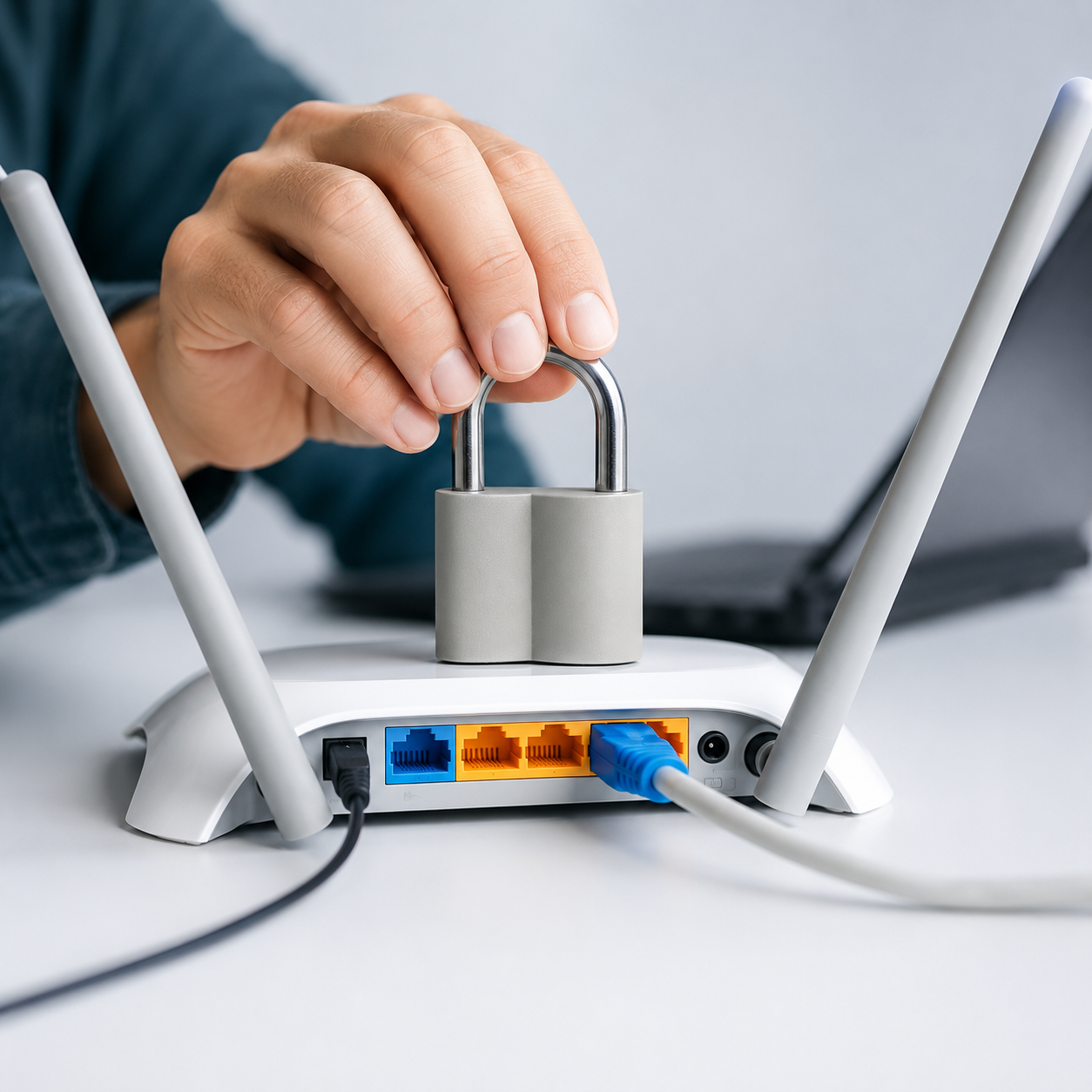
The Invisible Threat in Your Living Room
Most people lock their front doors at night but leave their digital front doors wide open. Your home Wi-Fi network contains massive amounts of sensitive data: banking passwords, private emails, and access to smart security cameras.
If your Wi-Fi is unsecured, malicious actors can steal your data, hijack your smart home devices, or use your IP address for illegal activities. Follow this DreamFiber guide to lock down your network.
1. Change the Default Admin Credentials Immediately
When you buy a router, the manufacturer sets a default admin username and password (usually "admin" and "password").
- Hackers know these defaults. If you do not change them, anyone can log into your router's control panel and take over the network.
- Log into your router's settings and create a complex admin password combining letters, numbers, and symbols.
2. Use WPA3 (or WPA2) Encryption
Encryption scrambles the data sent between your devices and the router.
- Never use WEP or WPA  these are outdated and can be hacked in seconds.
- Ensure your router is set to WPA3 (the newest standard) or WPA2-AES. You can find this in the wireless security settings of your router interface.
3. Create a Strong, Unique Network Name (SSID) and Password
Your Wi-Fi password should not be your phone number, your pet's name, or "12345678."
- Create a complex passphrase that is at least 12-16 characters long.
- Additionally, change your network name (SSID). Do not use a name that identifies your address or full name (e.g., "JohnSmith_Apt4"). A generic name makes you less of a targeted mark.
4. Set Up a Guest Network
When friends or contractors visit, do not give them your main Wi-Fi password.
- Most modern routers allow you to create an isolated "Guest Network."
- This provides visitors with internet access but prevents them from seeing your connected devices, shared files, or smart home controls. It also protects your main network if a guest's laptop is infected with malware.
5. Disable WPS (Wi-Fi Protected Setup)
WPS is a feature that allows devices to connect to the router by pushing a physical button or entering a short PIN, bypassing the long password.
- The WPS PIN is notoriously easy for hackers to crack using automated software.
- Log into your router's settings and permanently disable the WPS feature to eliminate this massive security loophole.
Conclusion: Stay Vigilant
Securing your network is not a one-time task. Remember to keep your router's firmware updated and periodically change your passwords. At DreamFiber, we provide pre-secured, highly encrypted routers with all our broadband plans to keep your family's data safe from day one.