

The Danger of Sharing Your Main Password
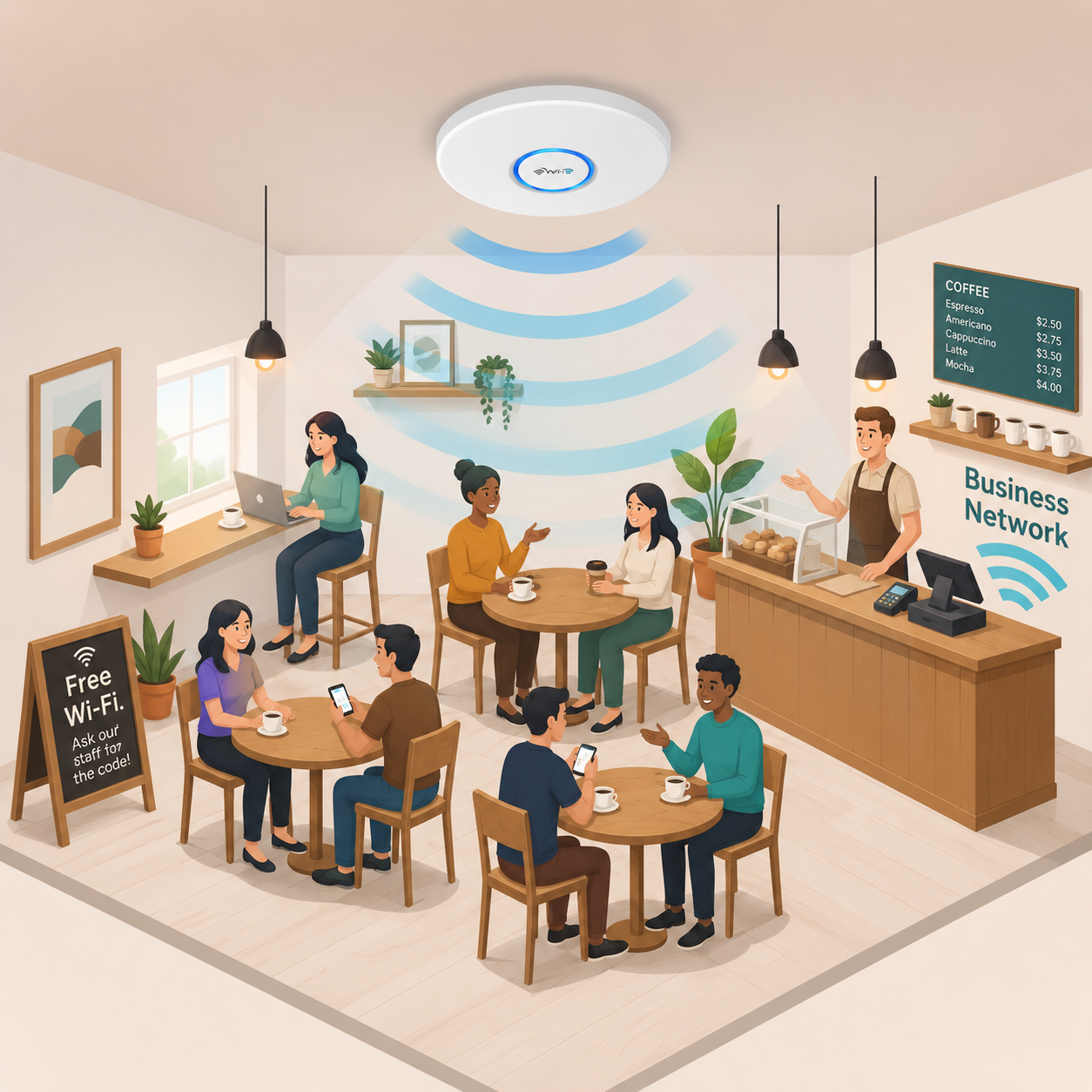
If you own a cafe, a dental clinic, or a retail store, customers expect free Wi-Fi. However, one of the biggest security mistakes a small business owner can make is printing their main router password on a piece of paper and handing it to the public.
When a customer connects to your primary network, their phone sits on the exact same digital highway as your Point of Sale (POS) system, your employee laptops, and your security cameras. It takes just one infected customer device to compromise your entire business.
The solution is simple: You must set up a dedicated Guest Wi-Fi Network. Here is how to do it properly with DreamFiber.
What is a Guest Network?
A guest network is a virtually isolated Wi-Fi access point broadcast from your existing router. It allows visitors to access the internet, but physically prevents them from "seeing" or communicating with any of your business devices.
Step 1: Enable Network Isolation
Log into your business router's admin portal (usually accessible via an IP address like 192.168.1.1).
- Navigate to the "Wireless" or "Guest Network" settings.
- Enable the Guest SSID (Network Name). Make the name obvious, such as "YourBusinessName_Guest".
- Crucial Step: Ensure the toggle for "Allow guests to see each other and access my local network" is turned OFF. This ensures total isolation.
Step 2: Implement a Captive Portal
Rather than using a standard password, professional businesses use a "Captive Portal."
- When a customer clicks your Wi-Fi name, a webpage pops up on their phone before they can access the internet.
- Here, you can force them to check a box agreeing to your Terms of Service (protecting you from liability if they download illegal content).
- You can also use this portal as a marketing tool, asking for their email address in exchange for Wi-Fi access, helping you build a customer newsletter list.
Step 3: Set Bandwidth Limits
If your business internet is 100 Mbps, you cannot let one customer downloading a huge movie consume 90% of your speed, leaving your cash registers offline.
- In your router settings, look for "Bandwidth Control" or "QoS (Quality of Service)."
- Limit the Guest Network to a specific maximum speed (e.g., cap guests at 10 Mbps per device). This ensures there is always enough bandwidth reserved for your core business operations.
Step 4: Schedule Availability
There is no reason your guest Wi-Fi should be broadcasting at 2:00 AM when your shop is closed. Hackers often target closed businesses by sitting in the parking lot and attacking the network overnight. Use your router's scheduling tool to automatically turn off the guest network when your store closes.
Conclusion: Secure Your Business, Impress Your Guests
Providing seamless Wi-Fi improves customer dwell time and satisfaction, but it must be done securely. If your current router lacks these enterprise features, it is time for an upgrade. Contact DreamFiber today to explore our dedicated business broadband packages, which include advanced, fully managed hardware capable of hosting secure, high-performance guest networks.